I Ran a Privacy Audit of My Smart Home Step by Step (Here’s What I Found)
I repainted my nails four times last week chasing one shade of chrome — here's the trick that finally made it stick past day two. But this story isn't about nails. It's about the moment I realized my smart home was spying on me more than I was on it.
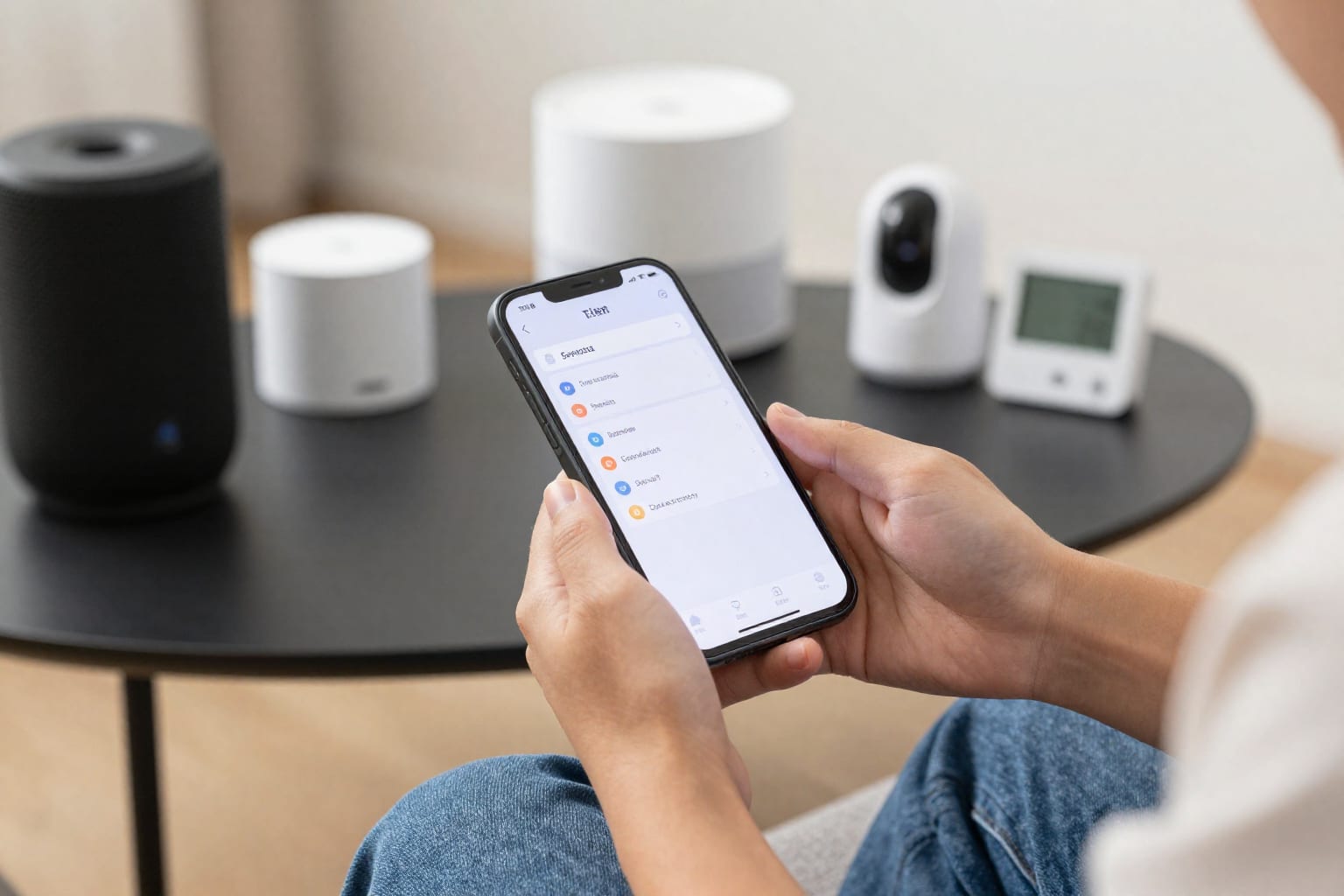
It started innocently enough. I was sitting on my couch, scrolling through the settings on my new smart thermostat, when I noticed a tab I'd never seen before: "Data Sharing with Third Parties." Curious, I clicked it. The list was longer than my grocery receipt after a holiday shopping spree — names of companies I'd never heard of, all supposedly receiving bits of my daily temperature preferences, occupancy patterns, and even whether I was home or away. That thermostat was just the tip of the iceberg. I had five smart speakers, three cameras, two smart locks, a fridge that could order groceries, and a robot vacuum that mapped every corner of my apartment. If I didn't know what data they were all sending out, I was basically inviting the world to watch me brush my teeth.
So I decided to run a full privacy audit of my smart home, step by step. No fancy tools, no cybersecurity degree — just me, my phone, and a lot of coffee. Here's exactly what I did, what I found, and how you can do the same without losing your mind.
Why I Finally Ran a Privacy Audit (And Why You Should Too)
I'll be honest: for years, I told myself that privacy audits were for paranoid techies or people with government secrets. My data is boring, I thought. Who cares if my smart speaker knows I like listening to 80s synth pop at 2 a.m.? But the more I read about data breaches, smart camera hacks, and the fine print of those "free" cloud services, the more I realized that boredom isn't a shield. Data aggregators don't need your secrets — they just need enough breadcrumbs to build a profile. And once that profile exists, it's sold, shared, and sometimes stolen.
The final push came when I saw a news report about a family whose smart camera was accessed by a stranger who talked to their toddler through the speaker. That could be me, I thought. That could be anyone. So I set aside a Saturday morning, printed out a checklist, and started.
Here's the truth: you don't need to be a tech wizard to run a privacy audit. You just need patience, a willingness to dig into settings menus, and a notepad for jotting down surprises. I promise it's worth it — I found things that genuinely shocked me, and fixing them took less time than bingeing one episode of a Netflix drama.
Worth bookmarking before your next lazy Sunday.
Step 1: Inventory Every Smart Device in My Home
You can't fix what you don't know you have. The first step of any privacy audit of your smart home is to list every single device that connects to your Wi-Fi, Bluetooth, or Zigbee network. I walked through each room with my phone's note app and wrote down the brand, model, and what it does. It took about 30 minutes and revealed devices I'd completely forgotten — like that old smart plug in the closet that still had its default password from 2021.
Here's my starter list for you to copy:
- Smart speakers: Amazon Echo, Google Nest Audio, Apple HomePod
- Cameras: Ring doorbell, indoor Nest Cam, Wyze outdoor cam
- Thermostats and sensors: Ecobee, motion sensors, door/window sensors
- Smart locks: August Smart Lock, Schlage Encode
- Appliances: Samsung smart fridge, iRobot Roomba, smart coffee maker
- Lighting and plugs: Philips Hue bulbs, TP-Link smart plugs
- Hubs and bridges: Samsung SmartThings Hub, Lutron Caséta bridge
- Streaming devices: Roku, Apple TV, Chromecast
I ended up with 17 devices. That's 17 potential data leaks. The inventory alone made me realize how much surface area I was exposing. So write it down — every little thing.
Step 2: Check Each Device's Permissions and Data Sharing
This is where the audit gets real. For every device on your list, open its companion app and dig into the settings. Look for sections labeled "Permissions," "Privacy," "Data Sharing," or "Analytics." I spent about 45 minutes clicking through each app, and what I found was eye-opening.
For example, my Wyze camera app had a setting called "Cloud Recording" that was enabled by default — even though I never bought a subscription. That meant the camera was uploading short clips to Wyze's servers, where they could be accessed by the company or, worse, by someone who hacked their database. I turned that off immediately. My Ecobee thermostat was sharing my "energy usage patterns" with a third-party analytics company I'd never heard of. I disabled that too.
The most surprising find? My smart speaker's app had a list of "Voice History" recordings — every time I'd said "Hey Google" or "Alexa," the device had saved a snippet to the cloud. I deleted the entire history and turned off voice saving. It felt like closing a window I didn't know was open.
Quick checklist for this step:
- Disable cloud recording on cameras unless you actively use it.
- Turn off voice history saving on smart speakers.
- Review and revoke unnecessary app permissions (e.g., a smart plug doesn't need access to your contacts).
- Opt out of data sharing for analytics and marketing.
I also found that some apps had "Allow access to microphone" or "Allow access to camera" even when the device wasn't in use. I revoked those — no reason for a thermostat app to listen to me talk about pizza toppings at 9 p.m.
Step 3: Review Account Settings and Third-Party Integrations
This step felt like cleaning out my junk drawer — tedious but deeply satisfying. Open your account settings for each smart home platform (Amazon, Google, Apple, SmartThings, etc.) and look for "Third-Party Integrations" or "Connected Apps." These are apps and services you've granted access to your device data, often without remembering why.
I found that my Google Home account was still connected to a recipe app I'd used once during a pandemic baking phase three years ago. It had full access to my device list and could theoretically turn my lights off at 3 a.m. if it wanted to. I revoked that connection. My Amazon account had a skill for a weather service that asked for my location data — disabled. My SmartThings hub was linked to a IFTTT account I'd forgotten existed, with a dozen automations I never used. I removed every single one.
Here's what to look for:
- Apps and skills you no longer use.
- Integrations that request more data than needed (e.g., a weather app that wants your full address).
- Accounts that have admin privileges over your devices.
- Old accounts from previous homes or roommates.
I also checked each device's cloud account directly — did I have two-factor authentication enabled? For most, no. I turned it on for every single one. That alone raised my privacy and security game significantly.
Step 4: Secure the Network and Update Firmware
Even if every device is locked down, a weak Wi-Fi network is like leaving your front door open. I started by logging into my router's admin panel (the IP address was on the back of the router) and checking a few key settings.
First, I changed the default admin password — it was still "admin"/"password" from when my ISP installed it. That's a rookie mistake, but one I'd ignored for years. Then I enabled WPA3 encryption (or at least WPA2 if your router is older) and disabled WPS, which is notoriously insecure. I also created a guest network dedicated to my IoT devices — a separate SSID that isolates them from my main network where my laptop and phone live. This means even if a smart plug gets hacked, the attacker can't reach my computer.
Next, I updated the firmware on every device I could. Some had automatic updates enabled, but others — like my old TP-Link plug — required me to manually check the app. That plug was running firmware from 2022, which had a known vulnerability I found on a quick Google search. I updated it immediately.
Network security checklist:
- Change your router's default admin credentials.
- Enable WPA3 or WPA2 encryption.
- Disable WPS and UPnP (Universal Plug and Play) if you don't need them.
- Create a separate IoT guest network.
- Update firmware on every device, especially older ones.
What I Found (And How I Fixed Each Issue)
After a full morning of clicking, scrolling, and muttering under my breath, here's a summary of what my privacy audit turned up:
- 4 devices had cloud recording enabled without my knowledge — disabled all of them.
- 7 third-party app integrations I hadn't used in years — revoked all access.
- 2 devices (a smart plug and a camera) still had default passwords — changed them.
- 1 router with default admin credentials and no encryption upgrade — fixed both.
- 3 devices running outdated firmware — updated them.
- 5 accounts without two-factor authentication — enabled it everywhere.
The most shocking find was the Wyze camera. I hadn't used it in months, but it was still uploading short clips to the cloud. I immediately formatted the SD card, disabled cloud recording, and added it to my guest network. The peace of mind was immediate.
I also learned something counter-intuitive: not all data sharing is bad. Some devices need cloud access for basic features — like my smart lock needing internet to send me notifications. The trick is to decide which features you actually use and which are just data drains. For example, I kept cloud recording on my doorbell camera because I use it to review deliveries, but I turned it off on the indoor camera because I don't need 24/7 footage of my cat sleeping.
Final Thoughts: How to Keep Your Smart Home Private Long-Term
A privacy audit isn't a one-and-done thing. Devices get updated, new apps get installed, and old permissions pile up like dust bunnies under the couch. I've set a calendar reminder to repeat this audit every six months, or whenever I add a new device. It takes about two hours now that I know the process, and it's saved me from at least one potential headache.
Here's my long-term routine:
- Every 6 months: re-run the full audit.
- Every time I buy a new device: immediately check its permissions and disable what I don't need.
- Quarterly: review third-party integrations and revoke unused ones.
- Monthly: check for firmware updates on critical devices (router, cameras, locks).
If you take one thing away from this, let it be this: your smart home is a convenience, not a sentient being that needs to know everything about you. You're the boss of your data. A privacy audit is just you reasserting that control. It's not paranoia — it's good housekeeping. And trust me, the feeling of knowing exactly what your devices are doing is worth more than any smart feature you might lose.
So grab a coffee, open your phone, and start with step one. You might be surprised what you find.